Personally I have always been interested in unusual hardware. Coming from a background in electronics, I tend to find "standard" computer hardware rather boring and always like to experiment with stuff that is off the beaten path. So I was thrilled when I found out about the Linux-powered Marvell SheevaPlug and ordered one right away from GlobalScale Technologies for only US$99. My intended project was replacing my ageing and power-hungry home server with this tiny, power-saving device.
System-level decisions
Installing Linux on a device like this is nothing like the standard pop-in-a-CD-and-go install process we are accustomed to when installing Linux on a normal PC. For one thing, there is no local user interface in the form of a monitor and keyboard. There is also no CD drive, and the device has no BIOS, instead it has a powerful open-source boot-loader called U-Boot that is quite famous in embedded systems circles.
The SheevaPlug comes with a stripped-down Ubuntu already pre-installed on the Flash drive and, for many uses as a standard file or web server, this may be just fine. But I use my home server as a MythTV backend, and I was surprised to find that the pre-installed Ubuntu does not have any kernel modules installed. This caused my USB TV tuner not to be recognized. I might have been able to hack in the right modules, but since I was going to add an external USB hard drive to store network backups and recorded TV shows anyway, I decided to leave the Ubuntu installation on the Flash drive alone and install a Debian system on the USB hard drive instead.
In case someone would like to install a fresh Ubuntu, it is worth noting that the ARM edition of Ubuntu 9.10 is not compatible with the SheevaPlug processor. Ubuntu 9.10 uses the ARMv6+VFP instruction set, while the SheevaPlug processor can only handle ARMv5 instructions. As far as I know, every other distro with an ARM branch should work though, as does Ubuntu 9.04.
A quick note on running a MythTV backend on the SheevaPlug. While the SheevaPlug has a processor that is quite capable of handling many server-related workloads, it is missing a floating point unit which causes media encoding performance to be pretty poor. In my setup, I only receive over-the-air HDTV, and the incoming MPEG2 stream can be dumped straight to the hard drive without requiring extra encoding. If you were to try to make MythTV on a SheevaPlug record analog TV though, the results would likely be very poor, since the SheevaPlug doesn't have the muscle to handle the required encoding in real time. As always, use the right tool for the task. In my case, not requiring additional encoding, the SheevaPlug handles the backend tasks for both playback of recorded shows and live TV playback with time-shifting just fine.
Installation
I customized /etc/hostname, /etc/network/interfaces and /etc/fstab to fit my network and system. I decided to partition the USB hard drive to have an ext3 system partition, a 1 GB swap partition and use the rest of the drive as a JFS file system that would hold network storage, backups and MythTV recordings. I chose the lesser known JFS file system because it deals well with the large files generated by MythTV and it is well know to be light on CPU usage, a marked advantage for a low-end system like this one. I decided to skip some of the read-only-root recommendations listed in the procedure since I was not using a Flash storage device but a real hard drive.
With my hard drive now set up with the first stage of the bootstrap system, it was time to hook it up to the SheevaPlug and give it a spin. Since I needed to hook up both a USB hard drive and a USB tuner, I had to add an external USB hub to split the one USB connection on the SheevaPlug into four. I do wish the manufacturer would have included a USB hub in the SheevaPlug hardware so more than just one USB connector would be available, but alas, an external hub does the trick.
The SheevaPlug has no connection for a screen, instead the initial console is accessed through a separate USB device connection that provides a virtual serial port. In fact, two virtual serial ports are provided through this connection: one provides JTAG connectivity for very low-level debugging, the other one provides a serial console at 115,200 bps. On a Linux system, these virtual serial ports can be accessed as /dev/ttyUSBx devices, and the serial console ends up being the second device. An inconvenience is that these devices only appear after the SheevaPlug is powered up, so you have to be fast in making your serial terminal connection once the devices appear to be able to stop the automatic bootloader in time.
After changing the bootloader parameters according to the directions in the procedure, I booted and reached a Bash prompt where I could run the second stage of the bootstrap process and the remaining setup. Besides the regular Debian package sources, I also added the debian-multimedia.org repository and was pleasantly surprised how well stocked their ARM repository is. Debian proper has an excellent reputation when it comes to supporting different architectures, but I hadn't expected this to extend to third-party repositories. A MythTV package for ARM was readily available, saving me the lengthy compile-cycle I had been expecting.
Still, I wasn't able to escape compiling entirely. I ran into trouble getting the USB tuner to work, although it is supposed to work just fine under Linux. The kernel always failed to load the firmware, although I had added it according to the instructions, and the kernel could find the file just fine, but then would error out trying to add a duplicate device node. Plugging the tuner in to my netbook running sidux, it worked just fine out of the box. This had me stumped for a while, but eventually I traced the problem down to a difference in how the Debian ARM and x86 kernels are configured. The ARM kernel has an option set to have the I2C device file system compiled into the kernel, while this is a module in the x86 kernel. The USB tuner uses components that connect to each other using the I2C bus, and both the I2C device file system and the TV tuner driver were trying to create device nodes for these components. I solved the issue by having APT download the kernel sources, copying the standard kernel configuration from the /boot directory, changing this troublesome option and recompiling the kernel.
I finished my system by using apt-get to install SSH, Samba, SWAT, MySQL, MythTV, rsync and probably some other stuff I forgot. How to set all these up is beyond the scope of this article and works pretty much the same as on any other Debian system, so plenty of information is available. The only thing that is unusual and that may confuse people is how to run mythtv-setup, since this is a Qt program and the SheevaPlug has no native GUI interface. The answer is that you can use ssh -X
* * * * *
Conclusion
This write-up was intended as a very high-level review of my experience setting up this unusual system, and is by no means a step-by-step walkthrough. There is plenty of detailed information available online on websites such as plugcomputer.org and computingplugs.com that can prove invaluable to get things working on the SheevaPlug. As remarked before, the system is sold as a developer's kit and setting it up is definitely not for the faint of heart or for those who avoid the terminal like the plague. In the end, I had a lot of fun getting this to work and the system is working beautifully. I learned a lot in the process and am amazed yet again at how flexible Debian is as an operating system for just about any computer, even embedded systems like this one.
About the author. Patrick Van Oosterwijck is an embedded software developer who in his professional life spends most of his days designing embedded systems and writing software for micro-controllers, usually on bare-metal devices without operating systems. His interest in Linux started about six years ago and since then he has experimented with everything from SuSE and Ubuntu to Gentoo and Buildroot. The last couple of years he has worked on several projects that apply Linux to embedded systems running on x86, Blackfin and ARM processors.
taken from distro watch issue
Jumat, Januari 08, 2010
SheevaPlug - a Debian home server in a wall-wart


Selasa, Januari 05, 2010
What New on Linuxmint 8 Helena
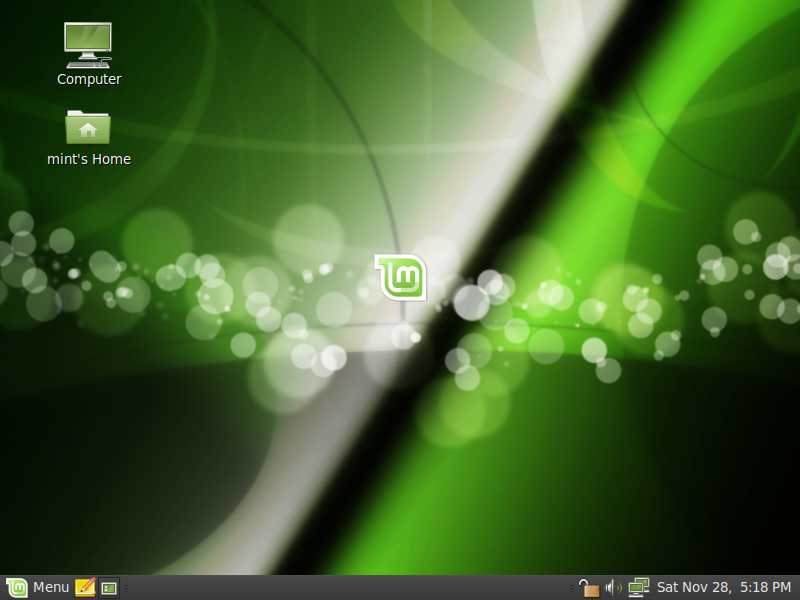 Dekstop view of linuxmint, nice look
This is Linux Mint 8, codename Helena, based and compatible with Ubuntu 9.10 Karmic Koala and its repositories.
New features
Based on Ubuntu 9.10 Karmic Koala, Linux 2.6.31, Gnome 2.28 and Xorg 7.4, Linux Mint 8 "Helena" features a lot of improvements and the latest software from the Open Source World.
Featured improvements in this release: OEM installation, possibility to ignore updates, configurable menu places, multiple selection in the Software Manager, new system tray File Uploader with support for drag and drop and mutiple files uploads.
For complete what's new on Linux Mint you can visit LinuxMint Official site.
to download the installer just click here.
Sabtu, Juni 20, 2009
BlankOn Nanggar Released
 BlankOn logo
Jakarta 16 June 2009 - On this day the official BlankOn Developers BlankOn launched version 5.0 with the release Nanggar, a culture that was on this version is from the Batak culture, the name "Nanggar" taken from the language that has meaning batak "Hammer".
Some typical features of the new brought in by Nanggar Desktop Berkonteks which is developed by Tim BlankOn Developers, who are able to change themes and background pictures desktop computers or the appropriate hour weather conditions that are applicable at that time.
Other special features on BlankOn Nanggar project is the latest edition of the archipelago memersembahkan Aksara ability to write and publish the text in Toba Batak script. Untuk mengikuti proyek Aksara Nusantara silakan ikuti tautan http://code.google.com/p/aksara-nusantara/ To follow the project Aksara Nusantara please follow the link http://code.google.com/p/aksara-nusantara/
BlankOn Nanggar the guide book includes the full use can be found through the following link http://blankonlinux.or.id/download/buku-panduan.pdf. This book can also enjoy your straight on the system that was installed on the Sample folder.
BlankOn Nanggar features:
- GNOME Desktop Berkonteks + 2:26
- Program Office: OpenOffice 3.0.1, GNUCash
- GIMP 2.6.6
- Inkscape 0:46
- A Firefox Web 3.0
- Kernel 2.6.28
BlankOn Nanggar Minimalis features:
- LXDE Desktop 0.3.2.1
- Program Office: AbiWord 2.6.6, GNUmeric 1.8.4, GNUCash 2.2.6
- GIMP 2.6.6
- Inkscape 0:46
- A Web Epiphany 2:26
- Kernel 2.6.28
About BlankOn
BlankOn Linux is a Linux distribution developed by the Linux Foundation of India (YPLI) and Ubuntu Indonesia that is suitable for the needs of computer users in general. The philosophy of simplicity and reliability offered by Ubuntu Linux distribution as the original, BlankOn Linux is developed openly and together to produce a typical Linux distro Indonesia.
To download yo can visit : official site nanggar or at distrowatch
Kamis, Mei 07, 2009
Debian Social Contract with the Free Software Community
ebian, the producers of the Debian GNU/Linux system, have created the Debian Social Contract. The Debian Free Software Guidelines (DFSG) part of the contract, initially designed as a set of commitments that we agree to abide by, has been adopted by the free software community as the basis of the Open Source Definition.
Social Contract
with the Free Software Community
- Debian will remain 100% free
We provide the guidelines that we use to determine if a work is
free
in the document entitledThe Debian Free Software Guidelines
. We promise that the Debian system and all its components will be free according to these guidelines. We will support people who create or use both free and non-free works on Debian. We will never make the system require the use of a non-free component. - We will give back to the free software community
When we write new components of the Debian system, we will license them in a manner consistent with the Debian Free Software Guidelines. We will make the best system we can, so that free works will be widely distributed and used. We will communicate things such as bug fixes, improvements and user requests to the
upstream
authors of works included in our system. - We will not hide problems
We will keep our entire bug report database open for public view at all times. Reports that people file online will promptly become visible to others.
- Our priorities are our users and free software
We will be guided by the needs of our users and the free software community. We will place their interests first in our priorities. We will support the needs of our users for operation in many different kinds of computing environments. We will not object to non-free works that are intended to be used on Debian systems, or attempt to charge a fee to people who create or use such works. We will allow others to create distributions containing both the Debian system and other works, without any fee from us. In furtherance of these goals, we will provide an integrated system of high-quality materials with no legal restrictions that would prevent such uses of the system.
- Works that do not meet our free software standards
We acknowledge that some of our users require the use of works that do not conform to the Debian Free Software Guidelines. We have created
andcontrib
areas in our archive for these works. The packages in these areas are not part of the Debian system, although they have been configured for use with Debian. We encourage CD manufacturers to read the licenses of the packages in these areas and determine if they can distribute the packages on their CDs. Thus, although non-free works are not a part of Debian, we support their use and provide infrastructure for non-free packages (such as our bug tracking system and mailing lists).non-free
Sabtu, Mei 02, 2009
Wifi Radar : Scan your Free hotspot
For linux dekstop at laptop, now we can use wireless interface to surf internet, much free hotspot area that we can use and happying browsing.
For scanning and show wireless hotspot signal you can use tools named : Wifi radar.
WiFi Radar is a Python/PyGTK2 utility for managing WiFi profiles on GNU/Linux.
It enables you to scan for available networks and create profiles for your preferred networks. You can drag and drop your preferred networks to arrange the profile priority.
WiFi Radar is tested to work with D-Link AirPlus G on Slackware 12.2 but should work just the same for any iwconfig interface. To use WiFi Radar you need to have the following:If your laptop running with Debian, Ubuntu, LinuxMint or Operating system similar Debian base, you just install it with apt-get option, like this :
~# apt-get install wifi-radar
Feel free to wait till installing finished, after that you can run at gnome menu - Internet - Wifi Radar, or at console just run :
~# wifi-radar.
and will appear this menu list :

Jumat, Mei 01, 2009
Lin-X : Linux Like MacOs
Lin-X is an Ubuntu-based Linux distribution themed like Apple's Mac OS X. It shares the same repositories and update manager, along with the release dates. Unlike other Linux distributions, Lin-X comes jam-packed with loads of "i-candy". It comes with the Compiz Fusion customised and ready to go, providing outstanding graphics right after installation. Lin-X is fully functional when booting from the live DVD and runs fast without losing any features.
Lin-X is an OS based off of the most popular Linux distribution, Ubuntu.

Lin-X looks like Mac OSX and shares many of the same features. With Lin-X you get the security and stability of Ubuntu with the feel of OSX.
Because Lin-X is based off of Ubuntu it shares the same repositories and update manager, along with the release dates Unlike other Linux distributions Lin-X comes jam-packed with loads of “i-candy”.
It is one of the only OS that comes with the Compiz Fusion customized and ready to go right out of the box, giving you outstanding graphics right after installation. Lin-X is fully functional when booting from the live DVD and runs blazingly fast without loosing any features.
Lin-X is free to download off the web with only $15(USD) support (which enters you into the giveaway) and $20 (USD) for us to send you a DVD.
If you want try this OS, you can click here to download.
Kamis, Desember 11, 2008
Daily Command From Debian Etch
This is the list that I always use when I configure a debian machine :
- apt, for this command we can use some job like : apt-get update ( for update your repository that store at : /etc/apt/sources.list, apt-get install [packages name] ( to install packages that we need to install), apt-cdrom add ( to add list repository from CD we have ).
- vim, this is a command to edit some file, for example : vim /home/andri/letter, this command mean that we open the file called letter.
- cp, to copy file at direcroty to another directory one. example : cp /home/andri/letter /home/iwan/
- mv, to move or rename file, example cp /home/andri/letter /home/iwan/letterrename.
- ln -s , to make simbolic link
- ls -la, to view list file or directory at our active directory
- ps -aux, to view running service at our machine
- iftop, to show and know traffik activity
- ifstat, like iftop but different in view order
- mc, midnight commander tools to copy file like Winscp maybe
- rcconf, to show and select or deselect the running service
- ipcalc, to calculate ip address